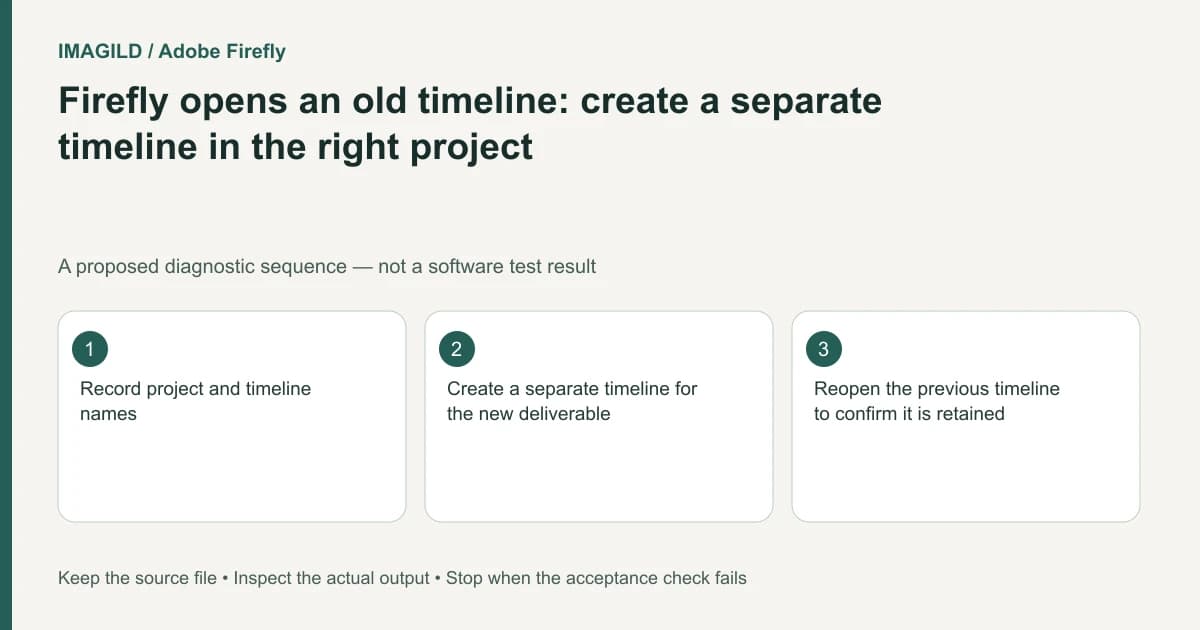
When Firefly reopens an old edit, create a separate timeline in the intended project before adding the new job's media. The Timeline workspace can return to the last-used timeline. A familiar viewer is not proof that you are working in a new project or an independent copy.
Check the project and timeline names first
Read both names in the header. Write down the current combination before changing anything. A project can contain organizational context beyond the visible sequence, so do not identify the job only by the first clip in the viewer.
Adobe's create a timeline instructions explain that the workspace opens the last timeline and provides Create new timeline through the project/timeline-name controls. Use that explicit creation route when the brief calls for a new edit.
For a hypothetical agency workflow, yesterday's product reel and today's tutorial may use the same background music. The music is not a reliable identifier. Naming the new timeline before editing prevents changes from being made to the previous client's sequence accidentally.
Create the new edit without replacing the old one
Choose the intended project, create the new timeline and give it a distinct name meaningful to the team. Add the new job's media only after confirming the header. Keep the old timeline accessible rather than clearing it as a shortcut to an empty canvas.
The workspace overview describes Projects and Files organization. A timeline, generation-history item and downloaded movie are related artifacts but not interchangeable versions of one file.
Use a short isolation check:
| Artifact | Record | Verification |
|---|---|---|
| Previous edit | Project and timeline name | Can be reopened without the new job's changes |
| New edit | Distinct project/timeline context | Contains the intended new media |
| Generation candidate | Result selected for this job | Not confused with an earlier similar shot |
| Final render | Delivered filename | Matches the new timeline, not yesterday's edit |
Add assets deliberately to the new timeline
A generated result can exist in History without being part of the new sequence. Confirm the selected clip is placed at the intended location after adding it. Do not create another generation merely because the new timeline is empty; the intended asset may already exist elsewhere in the workspace.
When you render, Adobe's project export guide applies to the active timeline. Recheck its name immediately before exporting, particularly if you switched back to the old edit for reference.
The Premiere project-shortcut guide covers a different application's link/copy boundary. Its controls do not apply to Firefly, but it illustrates why seeing an old project's content does not establish that a new independent edit exists.
Verify both sides of the isolation requirement
Reopen the previous timeline and check a known landmark, then return to the new timeline and check its new media. Export a candidate from the intended active edit and open it outside the browser. Compare its first shot and ending with the new brief.
The task passes when the new work has an identifiable timeline, the previous work is retained, and the delivered render comes from the right context. If the team actually wants to revise the old edit, state that decision explicitly rather than accidentally overwriting it under the assumption that a new tab created a new timeline.
Worked timeline identity check: autumn reel and winter tutorial
For a proposed studio handoff, record yesterday's edit as project Autumn launch / timeline Bottle reel approved, and today's work as project Winter help / timeline Cap tutorial draft. These are example names, not automatic app defaults. Read the displayed project and timeline names before using Create new timeline or adding new media.
After creating the intended new timeline, add a distinctive tutorial clip and verify it appears there. Reopen Bottle reel approved and check a known opening title to confirm the older edit remains intact. Return to the new timeline before rendering. A browser tab title, shared music track or recent-file position is not a reliable identity check. Record the timeline context beside the exported filename so the recipient can trace the delivery to the right edit.
- distinguish a project link from an independent copy: Use this as an artifact concept only; Firefly’s creation menu remains the controlling workflow.
- label approved and draft versions: Use this when similar job names make the correct active timeline or asset ambiguous.
- identify the review file and final master: Use this after exporting the new timeline so an earlier or lightweight review render is not delivered as the final job.
Prepared by Imagild Editorial. AI assisted research and drafting. Documentation checked on 4 November 2026; the examples are proposed review plans, not claims of hands-on software testing. Report a correction.