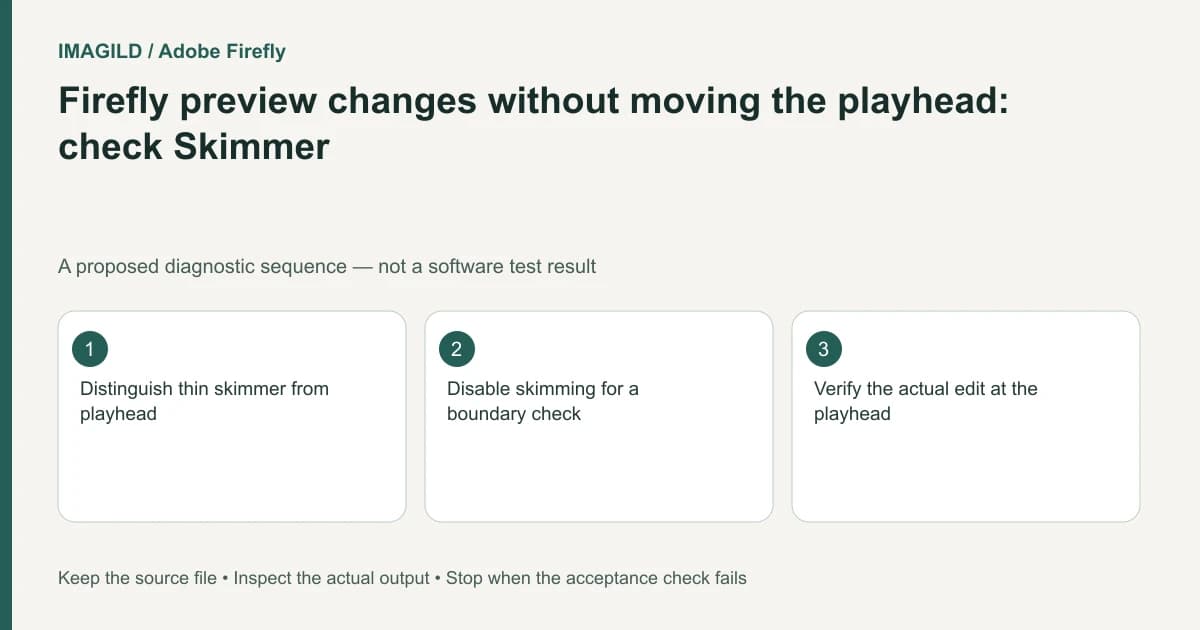
Check Skimmer when Firefly's preview changes as the pointer moves but the playhead stays in place. Hover preview and edit position are different states. Disable skimming for a boundary check if necessary, place the actual playhead deliberately, and confirm the target clip before splitting or trimming.
Identify the two timeline indicators
Adobe's Skimmer documentation, updated October 28, 2026, identifies a thin blue vertical line as the Skimmer and a thicker grey line as the playhead. The pointer-driven line can display another frame without moving the playhead. Use that documented distinction in the current Timeline beta interface; colors alone are not evidence that an edit occurred.
After media is on the timeline, open the menu at the upper-left of the page, then choose Timeline > Skimmer to enable or disable it. Hover to compare the preview while noting the playhead's position. For a precise boundary check, turn Skimmer off through that same menu and deliberately position the playhead before selecting an editing operation.
On a working copy, note the playhead's time and hover over an obviously different action. With skimming enabled, the preview can change while the thicker grey line stays put. Disable Skimmer and inspect the intended frame again. This is a proposed state check, not an application test or a claim that the menu performs a split.
Preserve the timeline before making a diagnostic edit. If no content has changed, there is no need to regenerate the clip, replace the media or undo unrelated accepted work. First determine whether you are observing a different frame or actually changing the sequence.
Describe the operation that needs an exact position
A split, a trim, a selected current frame and a simple preview have different consequences. Write what you are about to do and which visible frame should govern it. Then inspect the actual playhead position rather than relying on the last frame displayed under the pointer.
For an intended split, use Adobe's Split tool guidance and confirm the target clip. For a trim, consult the trim-to-playhead documentation for the current operation. Do not guess that every similarly named command affects the same layers.
Use a working copy for the first bounded operation if the scope is unclear. Inspect the result and undo a diagnostic change before continuing. A keyboard shortcut is not sufficient evidence of the intended target or boundary.
Use a hover-versus-edit check
| Observation | What it establishes | What it does not establish |
|---|---|---|
| Preview changes while hovering | Another frame is being displayed | The playhead moved |
| Skimmer line moves | Pointer-based inspection is active | A clip boundary was edited |
| Playhead is deliberately positioned | An edit location is selected | The intended clip is active |
| Split creates new segments | A structural change occurred | It happened at the desired frame |
| Playback crosses the boundary | The sequence can be reviewed | Its continuity is acceptable |
| Export matches the accepted edit | The delivered artifact was checked | Every earlier preview represented edit position |
This table is an editorial verification aid, not a performance test. The important evidence is which state changed and what the resulting timeline actually contains.
Inspect both sides of the real boundary
After an authorized split or trim, compare the frames immediately before and after the boundary. Check whether a useful gesture was removed, a frozen endpoint remains or a repeated frame creates a visible pause. Listen to sound that crosses the same location.
The freeze-or-jump-at-a-cut guide addresses those output symptoms. They are not solved merely by turning Skimmer off. Skimmer can explain why you chose the wrong apparent frame; it cannot by itself guarantee a coherent final cut.
If the source contains continuous camera movement, avoid calling every changed composition a new shot. Our camera-move-versus-cut guide helps define what boundary you actually intended.
A hypothetical hand-off close-up
Suppose a clip shows a person passing an object. Hovering over the release moment displays the desired frame, but the playhead remains earlier. The editor then attempts a split. This is an illustrative control-state example, not an executed Firefly test.
Preserve the original, disable skimming if it makes the comparison clearer, and position the actual playhead at the agreed action phase. Confirm the clip, apply the bounded operation and play across the new seam. The inspection should establish what the edit did, not only which frame was visible when the pointer paused.
Record the action cue as well as any timestamp. A teammate should understand whether the desired boundary is before the hand releases, during the hand-off or after the receiver takes control. That description remains useful when the timeline is rearranged.
Keep the accepted sequence identifiable
Save the result through a clear approved-version record. Inspect the actual final export if this boundary is part of the delivered film, retaining the source and editable sequence separately.
This documentation-based guide proposes a control-state check. It reports no frame-accuracy measurement, observed editing defect or guarantee that a particular keyboard operation affects every track identically.