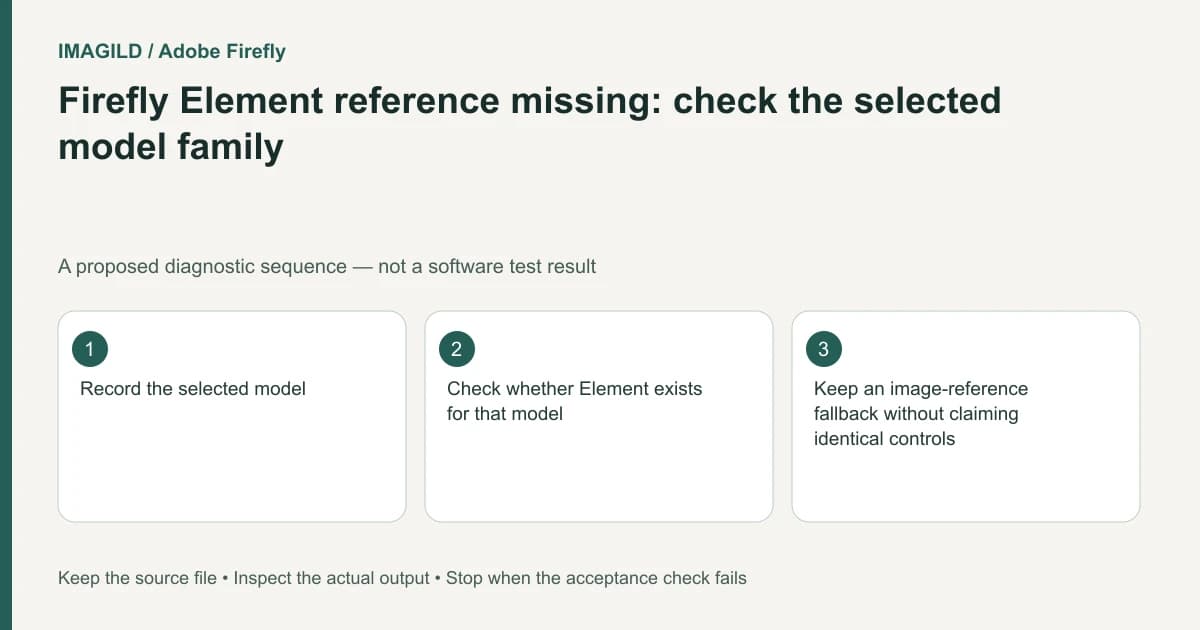
When Firefly's Element reference option is missing, check the selected model family before rebuilding the reference asset. The unified generation documentation makes Element references available for non-Adobe partner models. Available controls can change with the model, so a missing option is not evidence that your uploaded image is damaged.
Record the environment before changing the asset
Note the workspace, model name, media mode and current reference controls. A screenshot for your own review can preserve the setup. Do not compare a tutorial's model with a different active model and assume the two interfaces should expose identical options.
Adobe's generation and editing instructions identify the Element option under references and specify the partner-model boundary. That is the first eligibility check. It does not mean that every partner model supports every other reference or output setting.
If you need a particular model for an approved deliverable, changing the model only to expose Element may violate the brief. Clarify whether model choice or reusable-entity reference is the fixed requirement. Keep the original setup so the experiment is reversible.
Choose a supported reference route
For a hypothetical recurring mascot image, there are two separate questions: is the saved character element available in this workspace, and does the current model accept Element as a reference? Finding the element in Files does not establish that the selected model can use that reference type.
The Element creation guide explains how to prepare Character, Object and Location elements. Use it after you have confirmed that the intended generation route accepts an element. Creating more copies of the same element will not make an unsupported reference control appear.
| Observed state | Next check | Avoid |
|---|---|---|
| Element is absent from references | Selected model family and generation mode | Re-uploading the same photo repeatedly |
| Element option exists but desired asset is not found | Element location and workspace context | Assuming model eligibility proves file access |
| Image reference exists but Element does not | Whether a regular reference meets the brief | Claiming both reference types are identical |
| Required model cannot use the needed control | A supported alternative workflow | Promising the same output from another model |
Test the reference, not just the menu
Once a supported route is selected, confirm the correct entity in the reference slot. Review its type and any required views. A character, product and location should not be treated as interchangeable simply because each can be represented by an image.
For the mascot example, specify which traits are essential: face structure, clothing or approved colors. Then evaluate those traits in the generated result. A visible Element control is a configuration check, not a guarantee that every generated detail will remain unchanged.
The workspace overview describes the different Firefly surfaces. Automatic model selection in an assistant experience should not be confused with manually choosing a model in Generations. Stay explicit about where the documented behavior applies.
Stop if the required control is unavailable for the required model. Use a supported regular-image-reference route only when the changed constraint is acceptable, or hand off to an editing workflow that preserves the needed source detail. Keep the model and reference type in the final job record so another editor can reproduce the configuration check.
Worked model-eligibility check: one mascot, two reference routes
In the documented Generations workflow, start at the generation bar, confirm Image mode and the selected model, then inspect References and its Element option. The current guide limits Element references to non-Adobe partner models. If Element is absent for the required model, save that observation before changing anything. Finding the mascot in Files does not establish that this model accepts it as an Element.
For a proposed mascot job, protect its one rounded ear, teal scarf and three white chest marks. If a permitted partner-model route exposes References → Element, select the saved mascot and inspect the attached item before generation. If the required model has only an image-reference route, decide explicitly whether that changed constraint is acceptable. Do not rename an image reference as an Element or promise the same behavior. Review ear count, scarf and chest marks in the output independently from checking that the control existed.
- separate stored media from the AI input contract: Use this when an asset is visible in a project but the selected generation route does not accept that input type.
- set priorities when reference cues conflict: Use this if the mascot reference and a scene or style reference imply incompatible protected details.
- identify the approved mascot revision: Use this before attachment when several similar saved mascot versions exist.
Prepared by Imagild Editorial. AI assisted research and drafting. Documentation checked on 4 November 2026; the examples are proposed review plans, not claims of hands-on software testing. Report a correction.