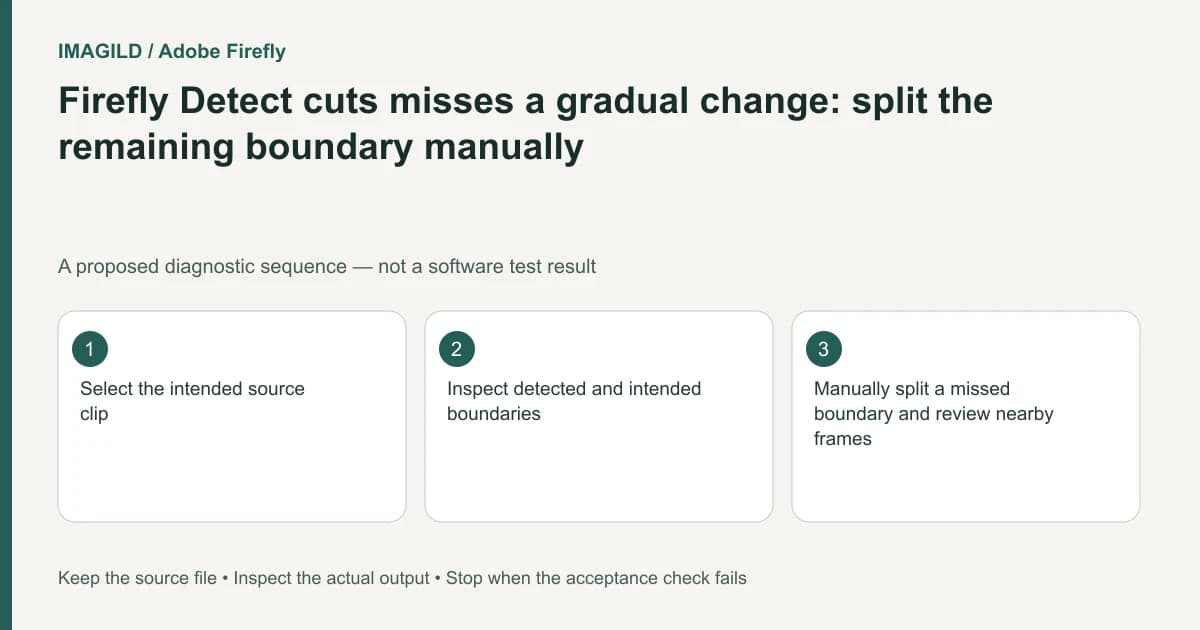
Treat Firefly Detect cuts as a proposed segmentation, not proof that every intended boundary was found. Inspect gradual transitions and subtle changes against the source, then use the Split tool where an additional edit boundary is needed. Preserve the original clip and review nearby frames and audio before rearranging the segments.
Define the boundary you actually need
An editorial split can mark a new camera shot, a new topic or the beginning of a usable action. These are not always the same event. Decide whether you want automatic shot segmentation or a manually chosen narrative boundary before judging the detector.
Adobe's Detect cuts guidance describes clearer visual changes as better candidates and identifies gradual changes as cases needing manual work. The feature belongs to Firefly Timeline beta, so check the current interface rather than assuming the control is identical across every Adobe editor.
Preserve the source recording and the pre-segmentation timeline. Record the missed interval in terms of the visible content or timestamp. A claim that the detector missed everything is less useful than identifying one transition that should have become an edit point.
Separate a camera move from a new shot
A continuous pan can change the visible scene without containing a cut. A dissolve can blend two shots over an interval rather than at a single visually obvious frame. Do not force every change of composition to be treated as a detected hard cut.
Our camera-move-versus-cut guide helps describe that distinction. If the source is a generated film, inspect whether the apparent transition is an editorial boundary or a continuous transformation within one clip.
Choose a manual split according to the editing task. For a dissolve, specify whether you want to preserve the complete transition, divide the source before it or replace it in a new sequence. There is no single boundary that automatically suits all three goals.
Review the proposed segments before moving them
| Source event | Detection question | Editorial check |
|---|---|---|
| Clear hard cut | Was a boundary placed at the change? | No lost or repeated endpoint frame |
| Gradual dissolve | Does it remain within one segment? | Intended transition preserved or rebuilt |
| Slow camera movement | Is this one continuous shot? | No unnecessary split implied |
| Topic change in one shot | Is a manual editorial cut needed? | Speech meaning remains intact |
| Brief inserted detail | Was a short segment overlooked? | Required action remains visible |
| Audio across a visual boundary | Should sound continue? | No unintended abrupt silence |
Use the table to distinguish what the software detected from what the editor wants to do next. Automatic segmentation and a finished edit have different acceptance conditions.
Add a bounded manual split
Follow Adobe's Split tool instructions on a working copy. Confirm the selected clip and actual playhead position before applying the operation. Then inspect the segments around the new boundary without immediately deleting either side.
When the preview changes merely because the pointer hovers elsewhere, consult the Skimmer documentation. A hover preview is not evidence that the edit playhead moved to the frame you meant to split.
Check the last useful frame before the boundary and the first useful frame after it. Listen to any word or sound spanning that point. A visually accurate split can still create an awkward audio edit when the segments are later separated.
A hypothetical room-to-detail transition
Suppose a source video dissolves slowly from a room view to a product close-up. Detect cuts leaves the passage in one segment, but the editor wants to reuse only the clean close-up. This is a proposed editing scenario, not a measured detection result.
Inspect where the dissolve finishes and choose a manual entry boundary that preserves the needed detail. Do not assume its midpoint is a clean product frame. Keep enough surrounding source to revise the decision after reviewing the new sequence.
If the reused close-up pauses or jumps at the join, use the clip-boundary continuity check. The goal is a coherent edit, not a particular number of detected segments.
Record the reason for every manual boundary. A teammate should understand whether it marks a visual shot change, the end of a transition or an editorial selection. That note prevents a later automatic pass from being treated as authority to overwrite the decision.
Verify the completed sequence
Play the accepted edit with sound, inspect every changed boundary and reopen the actual export using the video delivery checklist. Keep the untouched source and the segmentation record.
This documentation-based workflow reports no detector benchmark, frame-accuracy measurement or guarantee that every shot change can be identified automatically.