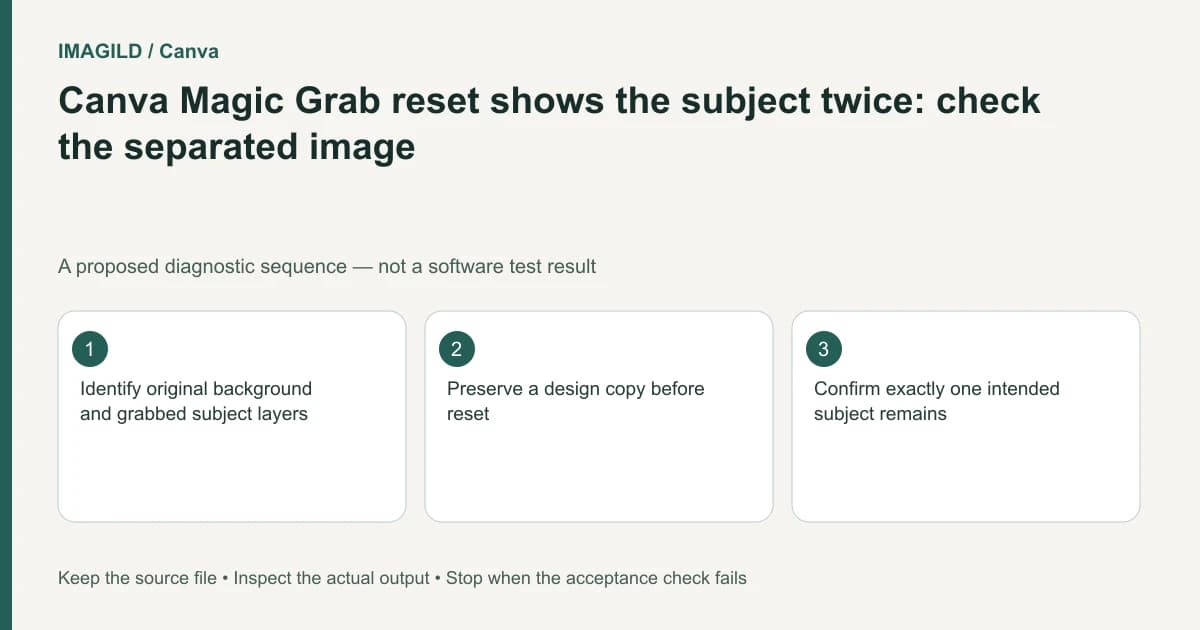
A doubled subject after resetting a Magic Grab background can be two retained objects, not a failed identity transformation. Identify the separated subject and the restored original image independently. Keep a copy, decide which version should remain, and remove only the unwanted instance after checking the complete composition.
Reconstruct the edit sequence before deleting
Write down what happened: a subject was grabbed, moved, perhaps resized, and the original background was later reset. Identify the point where the second visible instance appeared. That sequence is more informative than repeatedly applying another removal operation to the finished composite.
Canva's Magic Grab instructions distinguish the grabbed subject from the original background and its reset behavior. Restoring the source image can bring back content that a separate object already represents elsewhere on the page.
Preserve the current design before cleanup. A duplicate can be useful even when it looks wrong because it records the intended subject placement. Do not delete the whole image until you know whether it contains the accepted background, the original source or an unwanted extra copy.
Identify each visible instance by moving a copy
On a working duplicate, select one suspected subject and move it slightly. Observe which instance moves and what remains. Undo after inspection. Repeat for the background image if necessary, keeping the source and the accepted composition clearly identified.
Ask whether one instance belongs to the background photograph and another is independently positioned. If both move together, investigate grouping or the actual selected object before concluding that separation failed. If they move independently, decide which is part of the intended composition.
The source-preserving product-composite guide explains why identifying the protected source matters. A cleanup that removes the accepted product and keeps an altered duplicate can look superficially successful while violating the brief.
Choose the final composition deliberately
| Intended result | Keep | Remove or revise only after inspection |
|---|---|---|
| Original unmodified photograph | Original source image | Unwanted separated subject copy |
| Subject in a new position | Accepted separated subject | Duplicate remaining in restored background |
| Subject on a new scene | Reviewed subject and new background | Old scene remnants |
| Two intentional people or products | Both approved instances | Accidental extra instances only |
| Editable working design | Identified source and components | Unnamed duplicate layers |
| Final flat export | One approved composition | Hidden or off-canvas leftovers that affect export |
Do not infer intent from the number of visible subjects. A twin portrait, product comparison or before-and-after composition may legitimately need more than one instance. The brief, not an automatic cleanup rule, decides which objects belong.
Preserve the background's visual logic
If the separated subject was moved, inspect the region it originally covered. Background repair may be part of that relocation. Resetting the original can undo the repair and restore both the subject and its shadow. Removing only the most obvious duplicate may leave another incompatible visual cue.
The product double-shadow checklist covers that related composite symptom. Check the floor contact, reflected objects, shadows and any occluded background details separately. A plausible new position does not guarantee the old position was cleaned correctly.
Where a conventional mask workflow is appropriate, Adobe's layer-mask documentation describes hiding or revealing layer regions in Photoshop. It is an alternative editing method, not a claim that Canva has identical controls. Keep the chosen application's actual object model clear.
A hypothetical product relocation
Suppose a bottle is grabbed and moved to the right to create copy space. The designer later resets the source image and now sees the bottle in both positions. This is an illustrative sequence, not an executed Canva experiment.
Preserve the current layout, identify the independently moved bottle, and compare it with the original source. Decide whether the new placement remains approved. If it does, restore or rebuild the required empty background through an authorized workflow rather than deleting the accepted bottle simply because it is easiest to select.
If the goal changes back to the original photo, remove the separated duplicate instead. Record that decision so a teammate does not reintroduce it while looking for the edited subject.
Review before flattening the file
Canva's Magic Layers documentation concerns another kind of reconstruction and should not be used as evidence that every existing photo component is an original recovered layer. Keep the job focused on the actual objects already present.
Inspect the full canvas and reopen the actual export. Save the accepted revision with an approved-version record. This documentation-based guide reports no layer-recovery test, observed duplication rate or guaranteed background reconstruction.