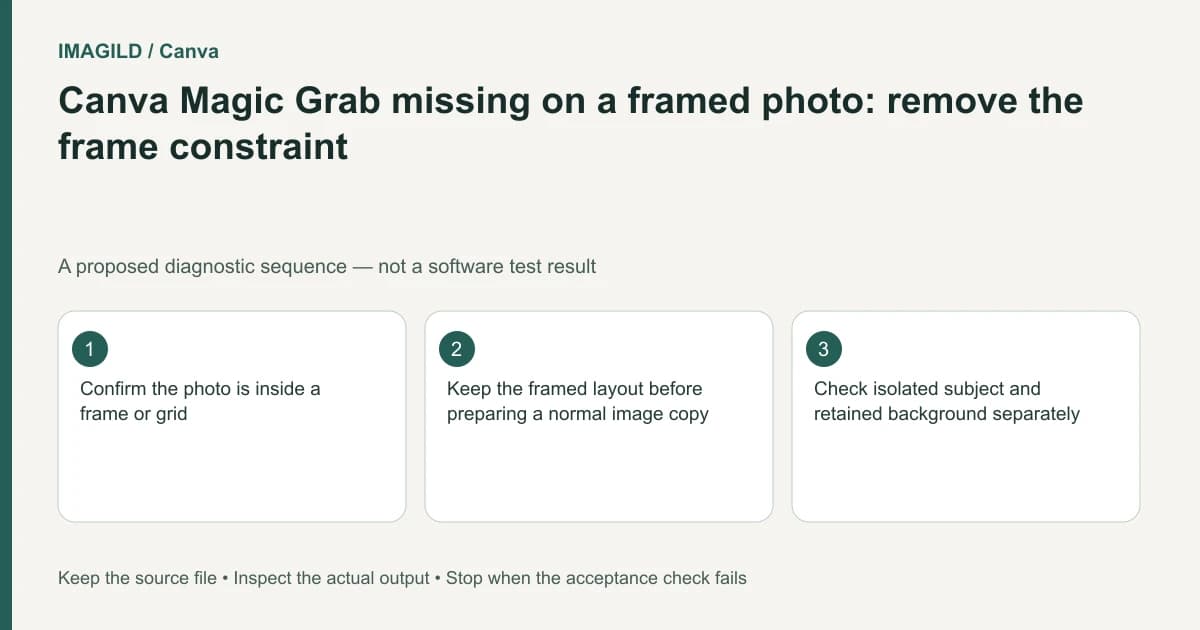
Check whether the photograph is inside a Canva frame or grid. The documented Magic Grab workflow does not support that container context. Keep the existing layout, obtain an ordinary-image working copy of the source, and test the subject-isolation task there instead of repeatedly selecting the frame.
Identify the selected object before changing it
A page can contain a photograph, a frame holding a photograph and several grouped elements that look like one picture. Record which object is selected and what the requested edit actually concerns. Moving an entire framed tile is different from separating the photographed person inside it.
Canva's Magic Grab help supplies the frame/grid boundary. Its frame guidance describes containers that display placed media. Those two facts explain why a photo that looks ordinary on the page may expose a different set of operations.
Do not dismantle the only approved layout just to investigate. Make a separate copy or preserve a recoverable revision. Keep track of the source photograph, the container crop and the intended final placement as three distinct parts of the job.
Decide whether isolation is even required
If the requester wants the face centered inside the frame, a crop or placement adjustment may be sufficient. If the requester wants the person on a new background, subject isolation is the relevant task. A missing Magic Grab control is not a reason to replace a simple framing adjustment with generative reconstruction.
Write the required result in one sentence: move the photographed subject independently, retain the frame's decorative outline, or change the crop without altering the photograph. Then choose the operation that addresses that result.
Our shape-versus-frame guide covers another container misunderstanding. It explains why a visible shape is not automatically a replacement frame; it does not claim that every container supports every AI operation.
Prepare an ordinary-image source copy
Locate the authorized original photograph rather than taking a screenshot of the framed design. A screenshot can bake in the frame edge, reduce detail and omit image areas outside the visible crop. Preserve the source at its actual resolution.
Follow Canva's supported route to place the photograph as an ordinary image in an appropriate working design. If source upload itself fails, use the official upload requirements to investigate that earlier step. Successful upload and eligibility for a particular editing operation remain separate checks.
Compare the working copy with the original before isolation. Confirm orientation, subject identity and the areas near the crop boundary. If the source is unavailable, ask the owner for it instead of claiming that a cropped preview contains the complete photograph.
Use a container-to-source decision table
| Starting object | Question to resolve | Safe acceptance target |
|---|---|---|
| Photograph inside a frame | Is the task placement or isolation? | Correct operation selected |
| Grid tile | Is the selected item the grid or its media? | Intended source identified |
| Ordinary uploaded image | Is the subject clearly represented? | Eligible source ready for review |
| Screenshot of a layout | Which details were already flattened? | Limitations disclosed |
| Isolated subject | Are edges and small parts complete? | Useful separated object |
| Final framed composition | Does the accepted crop remain correct? | Reviewed layout and export |
This table concerns the object and task relationship, not a guarantee that a person or product will be separated cleanly. Complex hair, transparent material and overlapping subjects still require inspection.
A hypothetical staff-photo collage
Suppose a team has a staff photograph inside a rounded frame and wants one person on a new campaign background. The editor keeps selecting the frame and cannot find the expected operation. This is a proposed diagnostic case, not a Canva test.
Preserve the collage and locate the original group photograph. Place a source copy in a suitable ordinary-image context and evaluate the intended subject separation. Check that the correct person was selected and that neighboring shoulders or hands were not included accidentally.
Only after accepting the subject should you decide how it returns to the campaign layout. Do not assume the original rounded crop should be carried into every new composition. The isolation and final placement have different acceptance criteria.
Inspect the export and preserve editability
Check the separated subject against contrasting backgrounds, then inspect the final composition at its actual use size. Our source-preserving background workflow describes when keeping original pixels is a requirement rather than an optional preference.
Retain the editable master and flat delivery copy separately. Reopen the final file and verify the intended subject, crop and frame. This documentation-based article reports no isolation test or guarantee that a framed image can recover material absent from its source.