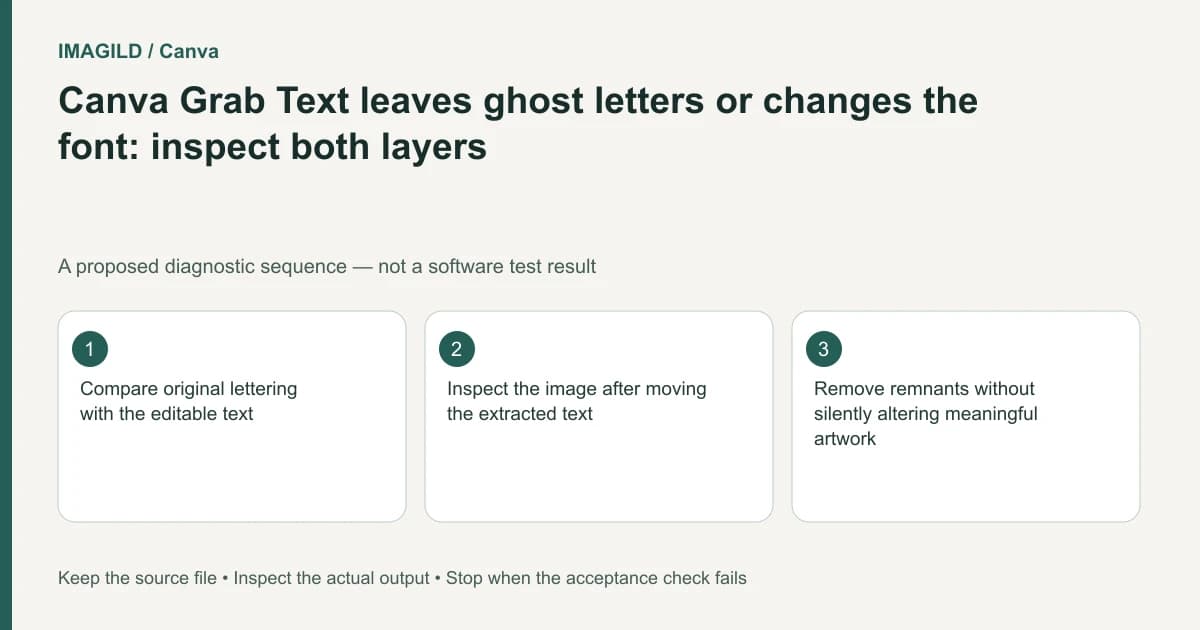
Review two things after Canva Grab Text: the editable text and the image beneath it. A recovered text box can use a different-looking font while old letter fragments remain in the picture. Compare the wording with the source, inspect the cleared region separately, and approve both before exporting.
Identify whether the error belongs to text or pixels
Move a duplicate of the extracted text aside temporarily. If the old word is still partly visible, you have a background-reconstruction issue. If the background is clean but the replacement looks different, inspect the new text's font and formatting. Both problems can occur in the same result.
The Canva Grab Text guidance describes possible approximations and imperfect reconstruction. Do not interpret the presence of an editable text box as proof that the original typography or surrounding image was recovered exactly.
Keep the source image beside the working version. Identify names, prices and reference numbers first. A plausible replacement word can be more dangerous than an obviously unreadable one because it is easier to approve without comparison.
Verify the literal wording before matching the font
Copy the new text into a plain-text comparison or read it directly against an approved text reference. Check repeated characters, decimal points and punctuation. Correct an uncertain string from authoritative copy rather than choosing whatever the extraction produced most confidently.
If the font name is unknown, describe the visible characteristics separately from the literal words. Our font-identification limits guide explains why a picture is not proof of a particular font file. Similar appearance can be sufficient for an authorized redesign, but it should not be described as restored original typography.
Record whether the client needs an exact brand font or only a readable replacement. These lead to different approval requirements. Do not quietly substitute a near match into a brand-controlled deliverable.
Check the image with the replacement out of the way
Use a duplicate for inspection so the accepted layout is not lost. Move or hide the replacement text, look at the vacated area, then restore the intended placement. Inspect small leftover strokes at both close view and normal reading size.
Compare the background texture with the original. A clean rectangle can still be wrong if it erases a meaningful illustration edge or changes a pattern. Stop and choose manual reconstruction or a new layout when the affected region cannot be repaired confidently.
| Symptom | Likely review area | Useful next action |
|---|---|---|
| Old letters show behind new text | Repaired image | Inspect with replacement moved aside |
| New word is spelled incorrectly | Editable text | Restore confirmed wording |
| Letters look similar but not exact | Font and glyph features | Obtain or approve the actual typeface |
| One line wraps differently | Text box and spacing | Review the entire heading layout |
| Empty boxes appear | Character coverage | Choose a font supporting the required text |
| Final file differs from editor | Export and font rendering | Reopen and compare the actual deliverable |
Avoid correcting all these symptoms with one unverified operation. Each row has an observable acceptance condition that can be reviewed independently.
Handle fonts as real dependencies
Canva's font-upload help is the relevant route when an authorized brand font is needed. Its font-error guidance distinguishes compatibility and font-family issues. Upload success alone does not establish that every intended character or style will render correctly.
Use a short test line containing the actual names, amounts and punctuation. If bold or italic is unavailable, consult the Canva font-variant guide rather than simulating weight by stacking multiple text copies.
Even the same named font can expose different letter forms through typography features in other applications. The OpenType alternate-glyph guide addresses that broader distinction. It does not imply that Canva supplies the identical Photoshop controls.
A hypothetical ticket-date correction
Suppose a scanned event ticket needs its date changed. Extraction creates editable numerals, but faint fragments of the old date remain between the new characters. This is an illustrative inspection plan, not a performed application test.
Keep the original ticket and confirm the new date from the organizer. Temporarily move the replacement aside, inspect the cleared region, and repair or rebuild it only with authorization. Then restore the text, check the date and surrounding wording, and ask for approval of the actual revised ticket.
Do not let a corrected text box conceal an unresolved old date. The recipient will receive the composite export, not the internal explanation that the new layer contains the right number.
Close the repair with a two-part approval
Record text accuracy and background appearance separately. Reopen the downloaded file at its intended use size and inspect the changed region again. Preserve the original picture and the editable reconstruction so a later correction does not begin from another flattened approximation.
This documentation-based article proposes verification steps. It reports no OCR accuracy rate, tested font recovery or observed cleanup result.