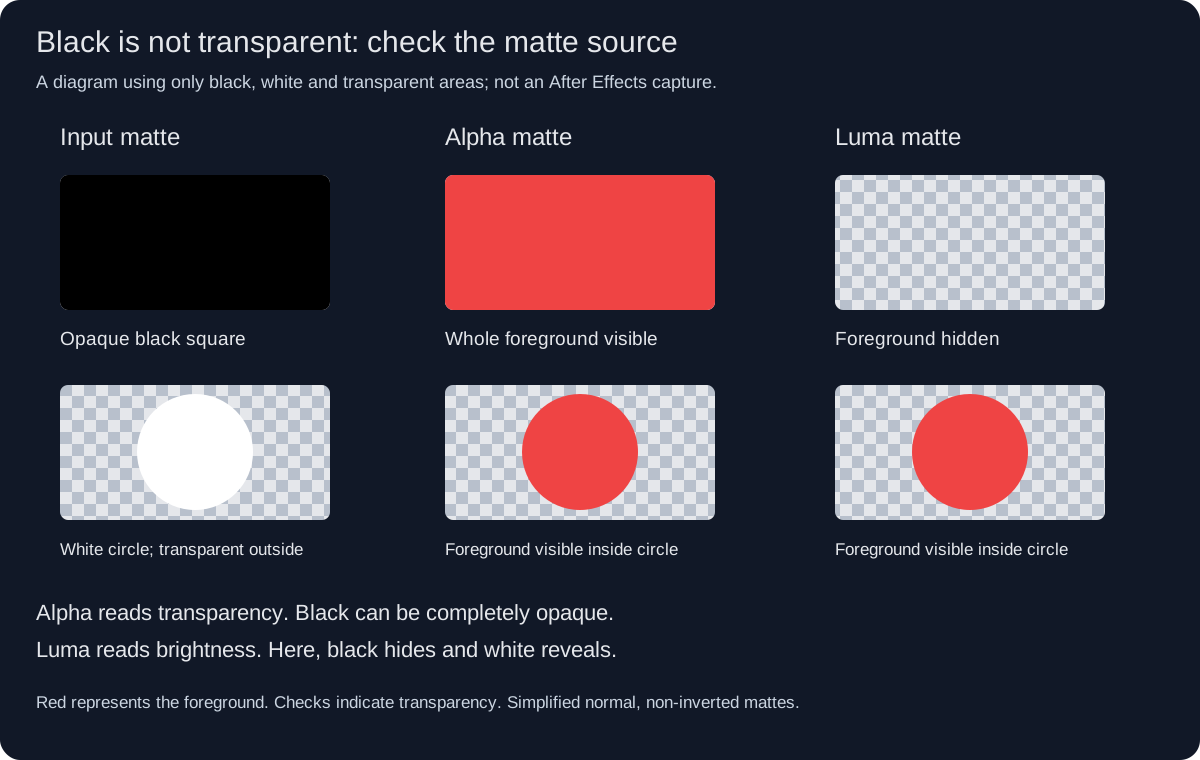
An opaque black-and-white picture can have a completely solid alpha channel. If After Effects reads that alpha as a track matte, both the black background and white shape may reveal the target layer. Select a luminance matte when brightness is the intended instruction, or prepare real transparency when alpha is the intended instruction. Making the black darker cannot repair a channel mismatch.
Inspect two different kinds of information
Open the proposed matte independently. Examine its ordinary color image and its alpha display. A white circle on opaque black contains a visible brightness boundary, but the alpha can remain white across the entire rectangle. A white circle surrounded by transparency contains a different boundary. File extensions and checkerboard screenshots are insufficient evidence; inspect the actual imported asset and the channel used by the receiving composition.
Adobe distinguishes alpha and luminance track mattes. Also confirm the assigned matte layer and the inversion control. Do not copy an old tutorial's layer-position requirement into a current project without checking its version: the present interface can select a matte source explicitly. Keep channel choice, source choice and inversion as separate decisions.
Predict the result before changing the artwork
Use a disposable three-region drawing: opaque white, opaque black and fully transparent space. Place a bright target underneath. Before previewing, write where you expect that target to appear for each matte type. This makes a wrong channel obvious and avoids spending time modifying a portrait that was never responsible for the failure.
| Region in the matte | Alpha expectation | Luminance expectation | Record the observation |
|---|---|---|---|
| Opaque white | Reveals | Reveals | Pending |
| Opaque black | Reveals | Hides | Pending |
| Transparent area | Hides | Inspect actual composite behavior | Pending |
The table is a diagnostic prediction, not a measured result. Transparent pixels can carry color data, so inspect the imported result rather than treating hidden RGB as an independent visible instruction.
Use the original explanation assets carefully
Our simplified matte diagram illustrates the opaque black and white case. It is an original explanatory drawing, not an After Effects screenshot or benchmark. Download the blank diagnostic record and enter the actual source filename, selected channel, inversion state and observed boundary from your project. Preserve the unmodified source beside that record.
For example, a poster reveal needs a white circular opening on black. If the file has solid alpha, changing to the appropriate luminance interpretation is a smaller correction than repainting the poster. If the delivery instead requires an alpha-bearing asset, make that asset deliberately and verify its transparency after reimport.
Approve the boundary and the direction
Preview a contrasting background behind the matted target. Check the center, outside area and feathered edge, then export a representative frame or short interval in a format appropriate to the requested delivery. A correct composition preview does not establish that an exported file retained alpha. Keep the final matte-source and channel decision in the handoff notes so another editor can reproduce the reveal without guessing from the black-and-white thumbnail.
Sources and scope
Prepared by Imagild Editorial with AI assistance. The example is a proposed diagnostic, not a reported software test. These are external post-production controls; their documentation does not establish an Imagild feature.